
iPhone Screenshots



Description
Color Jar keeps your colors in one place on iPhone and iPad. Point the camera at a color, pick one from a photo or screenshot, or type a value, and Color Jar saves it with a name, ready to copy as hex, rgb(), hsl(), or oklch().
• Pick with the camera: take a photo, then drag to any spot on it
• Pull the main colors out of any photo or screenshot, and drag to pick any spot
• Copy in the format you work in: hex, CSS rgb(), hsl(), oklch(), or Display P3, or a whole palette as CSS variables, Tailwind, SCSS, or JSON
• Keep colors in folders, mark favorites, and search by name or value
• Find saved colors in Spotlight
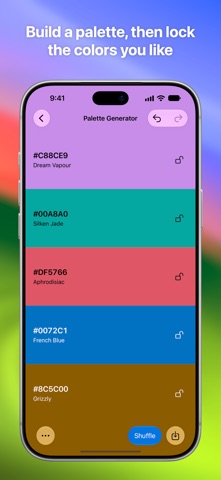
• Build palettes around a color with harmonies and moods, or describe one in a few words with Apple Intelligence
• Start a pick from Control Center, the Lock Screen, or the Action button
• 20 Shortcuts actions, also with Siri: add, find, convert, and export colors, build palettes, pull colors from images, and manage folders and favorites. A shortcut that takes a screenshot and adds its colors works from any app, on the Action button or Back Tap
• Sync through your own iCloud with Color Jar on the Mac, which picks colors from anywhere on your screen
Each new color gets the closest name from a list of about 5,000, like "Clotted Cream" and "Trail Dust", so you can tell your colors apart. You can rename any of them.
You can undo deletes, and Color Jar doesn't keep camera photos. Your colors stay on your devices and in your private iCloud, and Color Jar has no accounts, servers, or analytics.
Color Jar works with VoiceOver, Voice Control, larger text, Reduce Motion, and Increase Contrast.
One purchase covers Color Jar on iPhone, iPad, and Mac.