
iPhone Screenshots

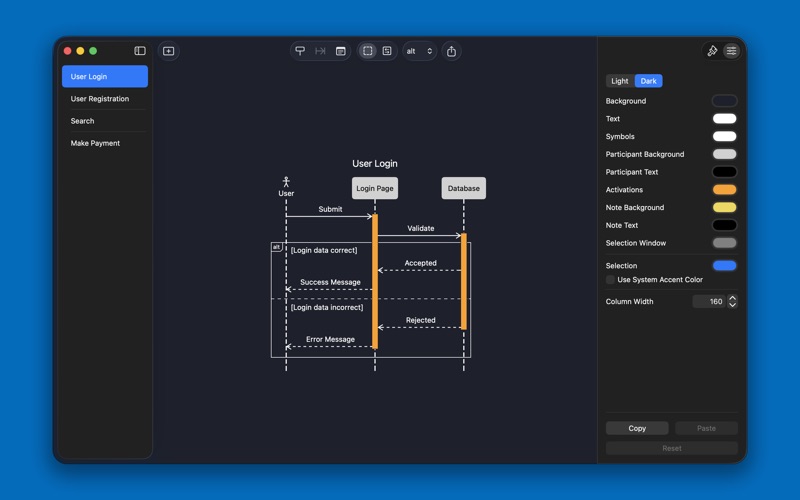
Description
Create clear, elegant sequence diagrams with a tool designed for precision and ease of use.
- Add, remove, and reorder lifelines, messages, and notes.
- Group messages using standard UML group types.
- Split message groups into separate sections with optional labels.
- Edit elements using the inspector panel.
- Style messages with different arrowhead types and solid or dashed lines.
- Flip message direction with a single button tap.
- Activate and deactivate lifelines.
- Customize colors and column width, with separate light and dark color schemes.
- Copy color schemes between diagrams.
- Export diagrams as PNG images.
- Import and export Mermaid files.
- Adding lifelines
Tap the lifeline button in the toolbar. Drag lifelines left or right to change their order in the diagram.
- Adding messages
Select two lifelines and tap the message button in the toolbar. Selecting a single lifeline creates a recursive message.
Messages can also be created by dragging from one lifeline to another. Drag out and back to the same lifeline to create a recursive message.
After adding a message, drag it up or down to change its order.
- Creating message groups
Switch to message group mode in the toolbar, then drag around the messages you want to include. Messages can later be added to or removed from a group by dragging them into or out of the group.
- Adding notes
Tap the note button in the toolbar. Notes are pinned to the lifeline immediately to their left. Drag notes to move them to a different lifeline or change their order.