
iPhone Screenshots




Description
1 Click Auto Subtitle lets you take a DOCX, TXT, or SRT file and quickly generate a subtitle XML file that you can import into compatible video editing software (Final Cut Pro).
Built for professional subtitle workflows—especially in broadcast, newsrooms, and long-form documentary or independent film production—1 Click Auto Subtitle helps editors move faster without compromising privacy. Everything runs locally on your Mac, making it a practical choice for security-sensitive projects and teams that can’t risk uploading scripts to third-party services.
You choose the subtitle template you want to use, and the XML is generated to match that template, so your subtitles drop onto the timeline already styled the way you expect.
This lets you stay focused on storytelling instead of repetitive subtitle work.
Key Features
• One-click conversion
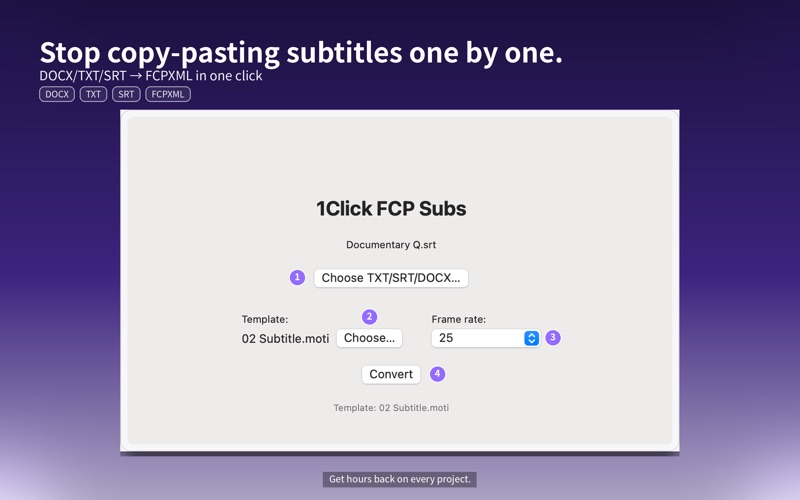
Drop in a DOCX, TXT, or SRT file and 1 Click Auto Subtitle generates a subtitle XML file for you.
• Template-linked workflow
Select the subtitle template you want to use inside your editing software (for example, a title preset in Final Cut Pro), and 1 Click Auto Subtitle builds the XML so that all subtitle clips are created with that template.
• Ready for timeline editing
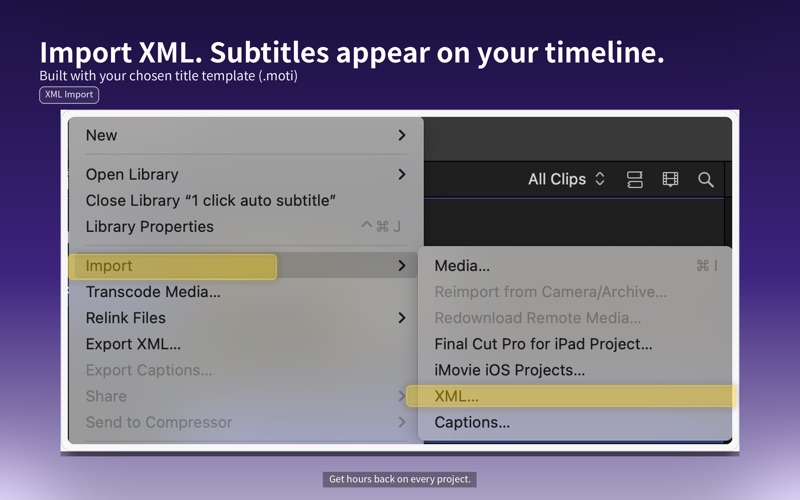
Import the XML file into your NLE (for example, via “File → Import → XML…” in Final Cut Pro) and see all subtitles laid out on the timeline, ready to tweak.
• Works with your subtitle style
Because the XML is tied to the template you selected, you keep your existing broadcast or channel subtitle look. 1 Click Auto Subtitle focuses on timing and structure so you can keep your visual design.
• Multiple frame rates
Choose the frame rate that matches your project (for example, 23.976, 24, 25, 29.97, 30, 50, 59.94, 60).
• Local, offline processing (privacy-first)
All conversion happens on your Mac. Your scripts and subtitle files are never uploaded to a server—ideal for confidential interviews, embargoed footage, and security-sensitive productions.
Typical Workflow
1. Prepare your script or captions as a DOCX or TXT file, or use an existing SRT.
2. Open 1 Click Auto Subtitle.
3. Select the subtitle template you want to use in your editing software (for example, a specific subtitle title preset in Final Cut Pro).
4. Choose the frame rate for your project.
5. Select your DOCX, TXT, or SRT file (or drag and drop it onto the app).
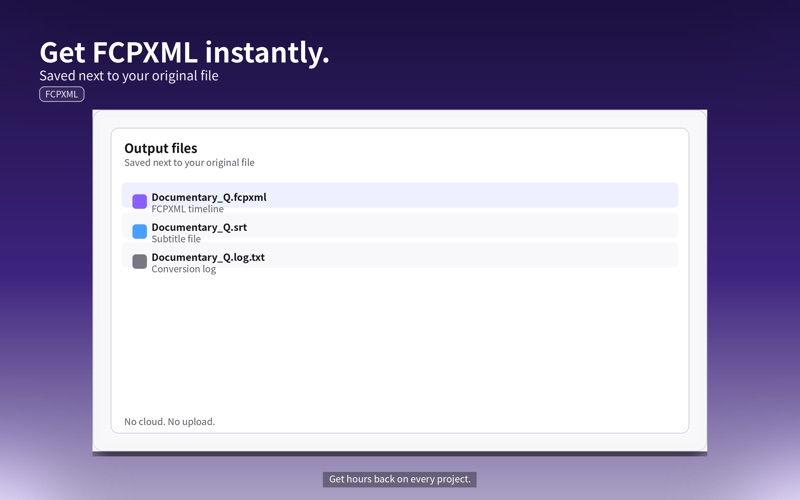
6. The app creates a subtitle XML file in the same folder as the source file
7. In your editing software (for example, Final Cut Pro), import the XML file.
8. Your subtitles appear on the timeline using the template you selected, ready for fine-tuning.
Who Is It For?
• Broadcast and newsroom editors who work with security-sensitive material
• Documentary editors handling long interviews and timecoded scripts
• Independent filmmakers producing long-form films and festival projects
• Video creators and YouTubers who receive scripts from translators or writers as Word (.docx) files
• Anyone who wants to skip the “manual typing into a subtitle template” step and go straight to editing
Requirements
• macOS 15.x or later
• Compatible editing software(Final Cut Pro)
• No internet connection is required for subtitle conversion
Privacy
1 Click Auto Subtitle does not collect any user data.
All processing is done locally on your device, and your files stay on your Mac unless you choose to share them.
Support
Email: [email protected]
Disclaimer
1 Click Auto Subtitle is an independent tool and is not affiliated with, endorsed by, or sponsored by Apple Inc. or Final Cut Pro.