
iPhone Screenshots


Description
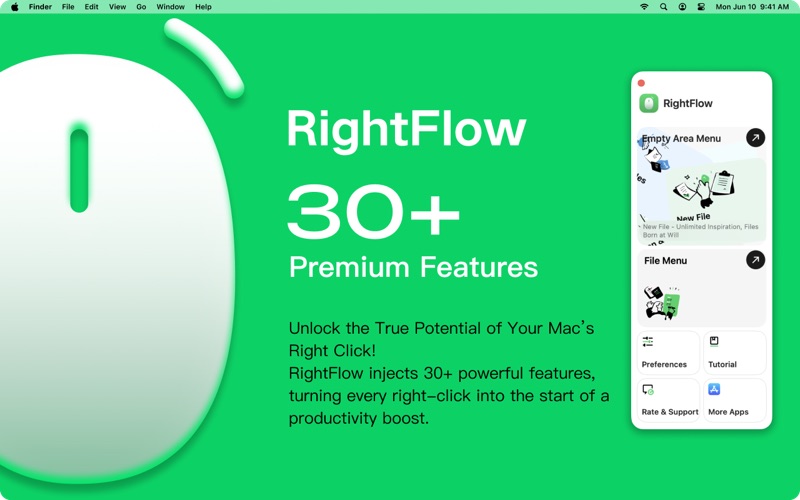
Introduction to core functions:
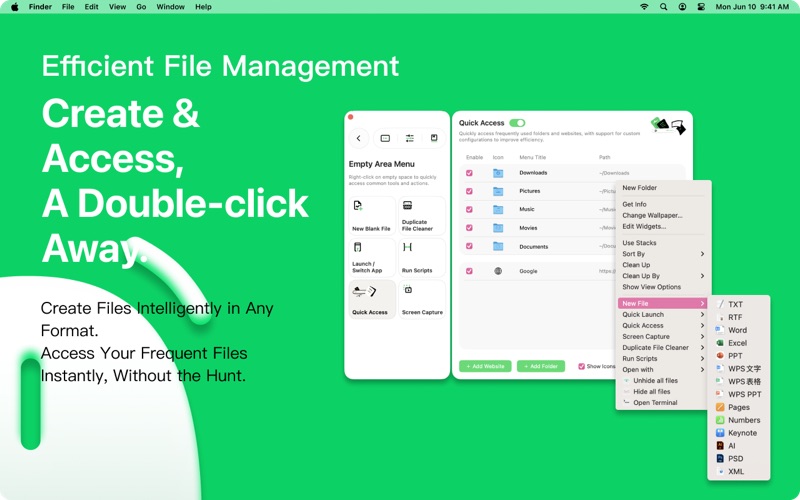
The following menu functions are integrated for the right mouse click (space menu) without objects
1. New Blank File Template
You can quickly create a file, such as a new Word file, an Excel file, a Psd file, and so on. Theoretically, you can add any file template or blank file you need.
2. Duplicate File Cleanup
In the folder where you need to find duplicate files, just right-click and select Duplicate File Cleanup to scan and clean duplicate files.
3. Quick Start Application
You can add your commonly used APP to the right-click menu. You can quickly start it by right clicking instead of using the various booths or visiting Dali.
4. Execute script
Quickly execute customized scripts through the right-click menu, and support shell, Python, AppleScript and other script types.
5. Quick access to folders or web pages
For example, some folders or web pages that you often need to open can be included in the right-click menu. It supports custom addition of target files and target web pages.
6. Screen recording and screenshots
You can quickly start screen capture and recording in the custom area without using shortcut keys.
7. Hide/Unhide Files
You can hide files in folders or desktop with one key to make the interface clean instantly.
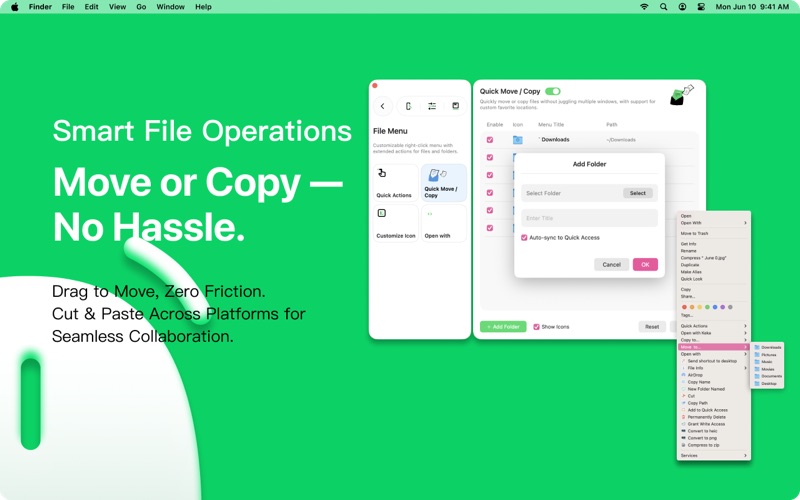
The following menu functions are integrated for right clicking (file menu) of objects
1. Cut/Paste
It makes up for the fact that the original MacOS system has no cutting function. The original file can be deleted and the new file can be pasted.
2. Move/Copy to Folder
One or more files/folders can be moved/copied to the specified folder at the same time, which improves the efficiency of the location operation of files or folders.
3. Custom icon
You can quickly set the file or folder icon to the color or icon you want.
4. Open with
Open the target file with your desired APP to quickly open complex project files.
5. Delete completely
Compared with the original move to the wastebasket, complete deletion can directly delete the selected files and will not be saved to the wastebasket.
6. Send to Desktop Shortcut
Put some common files and APP shortcuts on the desktop that are not on the desktop, and you can directly open files/AP on the desktop.
7. Copy file name
If you need to copy the file name, you do not need to rename it before copying the file. It is more convenient to copy the file name directly with one click.
8. Copy file path
Copy the path of the file archive. In design and program development, some path files are often needed. Here you can quickly copy the relevant information.
9. Airproof delivery
With the native airproof delivery function, you can directly deliver the selected files to other devices.
10. Create a new folder based on the file name
Create a folder with the same name as the name of the selected file.
11. Compress/decompress files
For some compressed packages, you can quickly decompress them, and you can also directly compress files into zip format compressed packages.
The above is the introduction of the main functions, and there are more practical functions waiting for you to explore and use together. If you want to use the functions that are not available at present, you can leave a message for us. If you can implement them, we can add them to create a featured and powerful efficiency tool.
If you have other needs or optimization suggestions, please feel free to contact us, and technicians will communicate and follow up one-on-one. We will continue to optimize to provide you with a better experience!
Privacy Policy: https://www.macgopro.com/protocol?key=privacy_policy
End User License Agreement: https://www.macgopro.com/protocol?key=license_agreement