
iPhone Screenshots


Description
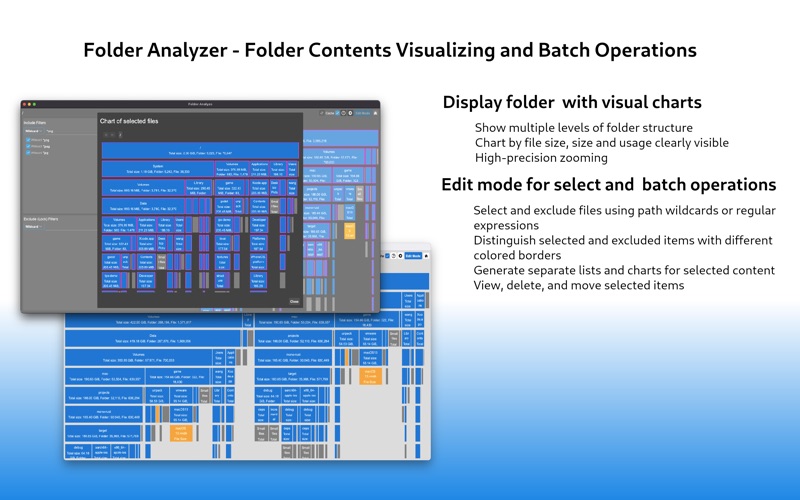
A powerful and easy-to-use folder content analysis tool that displays content as charts, making the size and number of files clearly visible. It also supports an edit mode, where you can select or exclude content using wildcards or regular expressions, and perform operations such as statistics, deletion, and moving on the selected content.
How to use the chart:
1. Click the "Pick Folder" button to choose a directory and wait for the scan to complete. You can use the "Command-Shift-G" shortcut in the Finder file selector to input and jump to any directory.
2. Hover your mouse over the squares in the chart to view descriptions, and click to see details. Orange squares represent files, blue squares represent folders, and gray squares represent small files or folders that are too small to be displayed as individual squares.
3. Long-press a folder (blue square) to switch to that folder.
4. Scroll up or down to zoom in/out with the current mouse position as the center.
5. Scroll left/right or drag to move the chart horizontally.
6. If you want to view details of small files (gray squares), you can zoom in directly, or switch to their parent directory and adjust the zoom level to make them visible.
7. Click the "Home" button at the top-right corner of the chart to exit the chart and return to the main interface.
8. About cache: After enabling the directory cache, you can open the chart in "Cache Only" mode.
How to use edit mode:
1. Click the "Edit Mode" button at the top-right corner of the chart to switch to edit mode.
2. Use the "Select Filters" to select files and folders. Filters support wildcards and regular expressions.
3. Use the "Exclude (Lock) Filters" to lock files and folders that you don't want to select. Locked content cannot be deleted or moved.
4. Click a file or folder square to open its detail view. In the "Add Path to Filter" field, you can choose to add the item to the selected or excluded filter.
5. The selected content and its parent directory are marked with red and magenta boxes in the chart, while the locked content and its parent directory are marked with dark gray and gray boxes.
6. Use the operation menu in the top-right corner of the "Select Filters" to view details, delete, or move selected content.
7. Use the button on the right side of the filter input field to import or export the list of filters for future use.
Terms of Use:
https://www.apple.com/legal/internet-services/itunes/dev/stdeula/