
iPhone Screenshots






Description
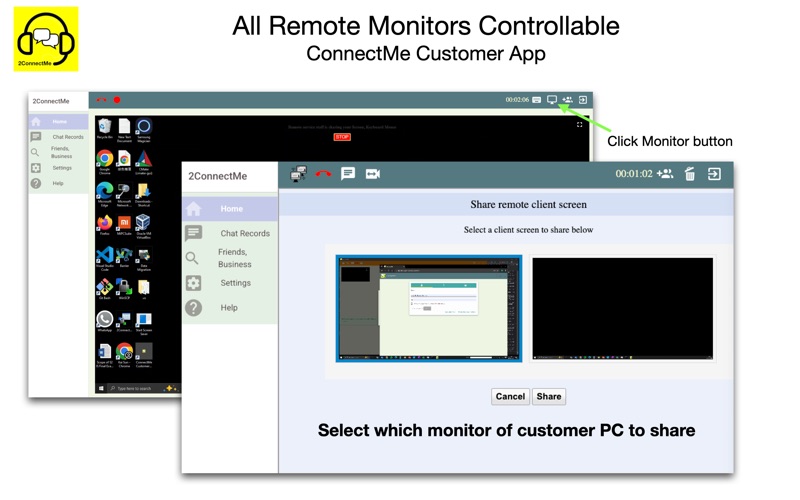
ConnectMe Customer empowers you to share your own Mac OS desktop screen, keyboard mouse control with remote service staff.
Empowers anyone to perform online service to earn incomes on internet.
2ConnectMe provides all the advanced digital tools to perform online services
- video, voice, chat, screen sharing, co-browse,
- recording video, voice chat conversation,
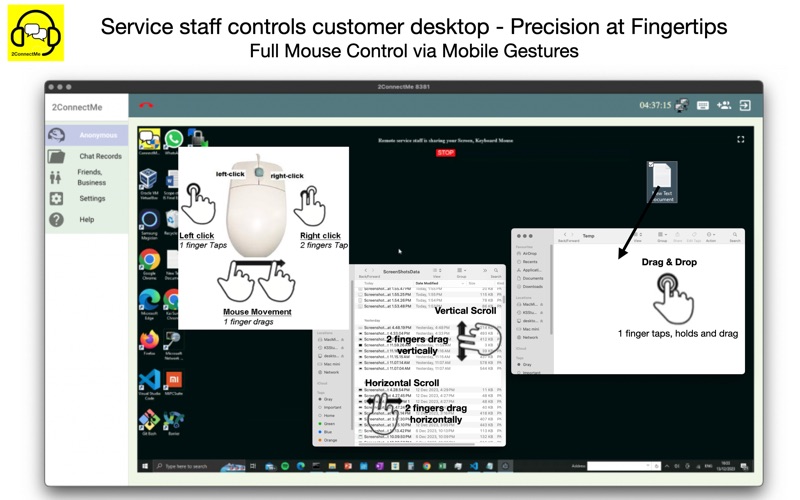
- remote control customer keyboard mouse,
- new customer contact channel for instant anonymous chat,
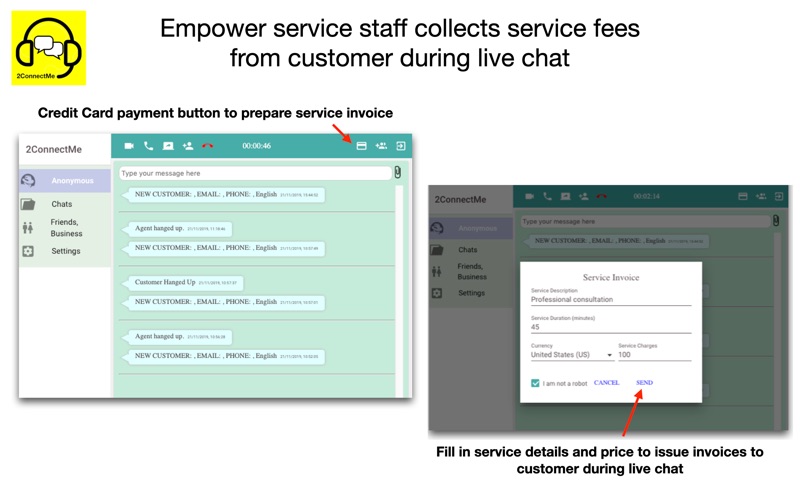
- customer payment charging scheme based on chat duration,
- white label branding builds your own live chat app with your business name on your finger tips.
- NO CODE / LOW CODE platform to build chat app solution for all businesses.
2ConnectMe Live Chat platform is composed of Agent and client customer apps. This app is particularly for client customer to share the local Mac OS screen, desktop keyboard mouse control to remote service staff, i.e. agent side. Agent app is working on a normal browser without installation needed.
Quick Start
1. For 2ConnectMe agent, i.e. service staff, it requires to register a new account for 2ConnectMe agent with email address.
https://www.2connectme.com -> Sign Up Free
2. Logon and keep "ONLINE" status of 2ConnectMe agent after successful registration above.
3. Download and get installed of this app on Mac OS.
4. Start this app and use the agent email address to connect to service staff.
https://www.2connectme.com/index.php/documentation/remote-control-of-customer-desktop/
FAQ:
2ConnectMe Agent setup in 5 minutes
https://www.2connectme.com -> Documentation -> New Account Setup -> Basic Setup in 5 minutes.
https://www.2connectme.com/index.php/documentation/starts-to-serve-customers-in-5-minutes/
2ConnectMe Agent remote control customer desktop
During live chat
https://www.2connectme.com/index.php/documentation/remote-control-of-customer-desktop/#remoteControlLiveChat
Unattended control mode while customer is away from PC desktop
https://www.2connectme.com/index.php/documentation/remote-control-of-customer-desktop/#remoteControlUnattendedControl
Gestures
https://www.2connectme.com/index.php/documentation/remote-control-of-customer-desktop/#gestures
Agent and customer local keyboard layout must be the same
https://www.2connectme.com/index.php/documentation/remote-control-of-customer-desktop/#remoteControl
2ConnectMe Customer Usage Info
https://www.2connectme.com -> Get Started -> Remote Control of customer desktop
https://www.2connectme.com/index.php/documentation/setup-remote-control-customer-desktop/
Setup Short Code (Access Number in Settings)
https://www.2connectme.com -> Documentation -> Control Customer Desktop -> Setup Access Number in Public / Private chat room
https://www.2connectme.com/index.php/documentation/setup-access-number-in-public-chat-room/