Canon Publisher Mobile
Print documents to Océ and Canon plotters.
Canon Production Printing Netherlands B.V.
iPhone Screenshots



Description
The app allows users to print PDF, DWF, PLT, JPG, and TIFF documents to Océ and Canon plotters. Users can reprint documents, scale plots, and view plotter status.
With Publisher Mobile, you can print your PDF, DWF, PLT (HP-GL, HP-GL/2, HP RTL), JPG, and TIFF documents to Océ and Canon plotters. Reprint your documents, scale your plots, access the main settings, view the queue, media and ink/toner status of your plotter at any time. Available in 20 languages.
Printing with Publisher Mobile is easy:
CONFIGURE Publisher Mobile
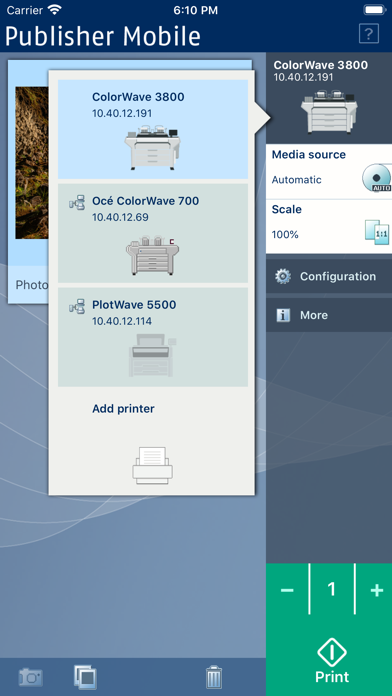
Tap the printer button > Publisher Mobile detects the compatible printers that are available in your network. The detected printer (indicated with a 'Connection' icon) is added to your printers list.
When your printer is not detected, you can add it manually: tap the 'Add' printer button.
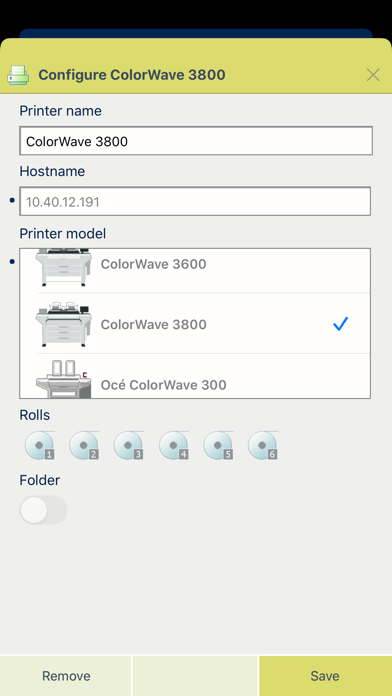
Enter the IP address or hostname of the printer > Give it a name > Check or define the printer model > Define the number of rolls > Indicate if there is a folder > Add / Save > Ready!
OPEN A DOCUMENT
From your e-mail, web browser or any other App: Select a document and use the "Open in" functionality > Select Publisher Mobile.
Or From Publisher Mobile: Tap the “Photos” icon > Browse your Photo Gallery to select a document; or Tap the “Camera” icon > Take a picture.
PRINT A DOCUMENT
Select a printer > Define the print settings you need > Tap the Green button > You print!
DELETE A DOCUMENT
Select a document > Tap the "Delete" icon > Confirm
ADDITIONAL INFO
1. Publisher Mobile operates with all the TDS, TCS, PlotWave and ColorWave printers.
2. Publisher Mobile displays a preview of your PDF, JPG and TIFF documents. To preview a DWF file, you must use a dedicated App.
3.Plotting PDF and DWF depends on system configuration.
4.PLT files in HPGL1/2
5.Find out more on the Publisher Mobile Support page