
iPhone Screenshots

Description
Search files across connected drives and folders. Select specific volumes or folders to search. Filter results to narrow down locations. Quickly locate files without scanning entire disks. Supports networked environments for targeted searches.
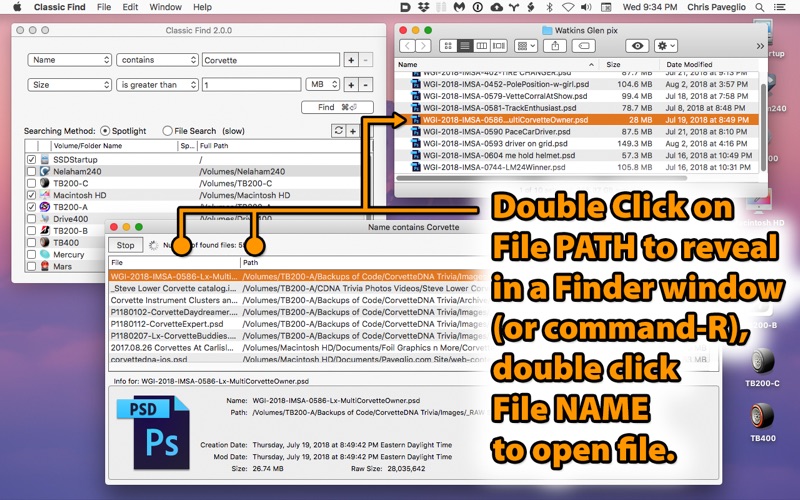
Classic Find is inspired by the Find File utility seen in Mac OS 9 through OS X 10.3. It features a list of all attached drives & volumes to search. Choose to search one, all, or only a select few drives, or even just a single folder. This is useful for cutting your search time, or results, down, or when you know you only need to search certain disks/sub-folders. Especially helpful in networked environments where you really don't want to search all connected volumes.
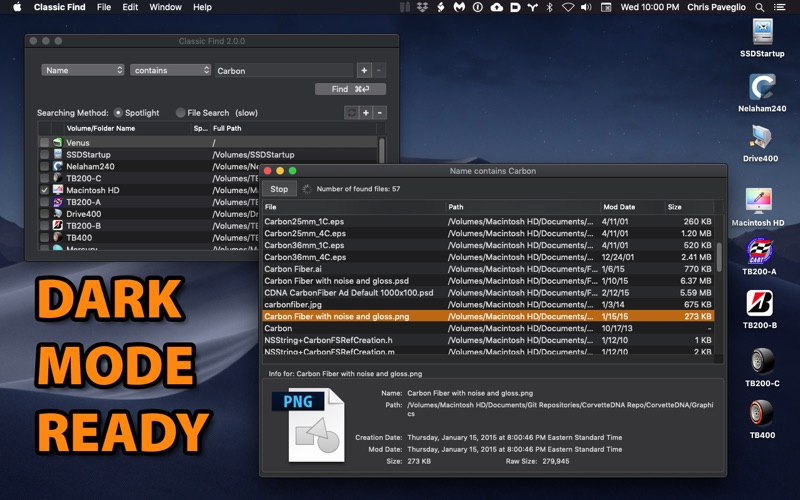
Classic Find uses the Spotlight search engine for default searches, so your volumes should be able to be searched by Spotlight.
You can use the File Search function to search all files individually on a disk, but this is much much slower. But unlike Spotlight which excludes certain directories from its index (like the System and Library folders), File Search will look at everything. But it can be slow.
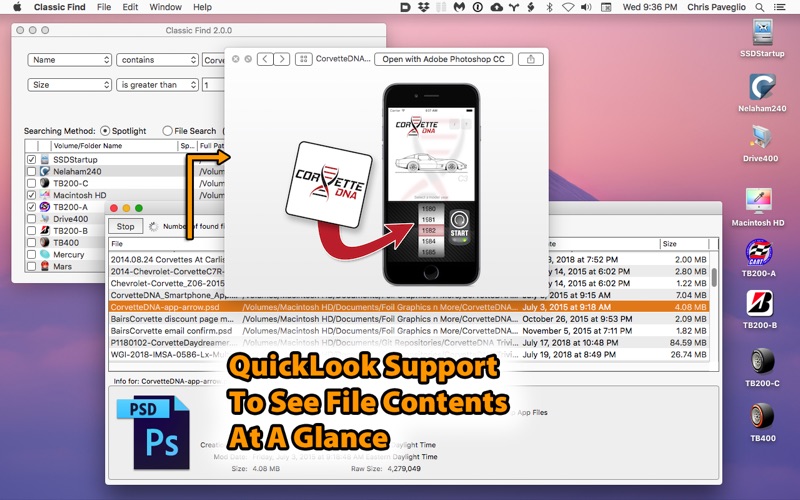
Once found, you can highlight a found item in the Found Items window, and the lower info panel will give you more details. In the list, double click the name of a file to open it in the default application for that file, or double click the file path (or press command-R) to open that folder and see the file on disk. Press space for QuickLook on a file. Drag a file from the list to copy to a new location (hold command to move).