
AudioRepeater - Repeat&Seeking
Play audio, mark, repeat sections
Hashimoto Shogo
iPhone Screenshots


Description
Lets users create playlists and add markers to repeat specific audio sections. Users can navigate to desired playback positions, set repeat intervals, and use the for language learning, ear training, and transcription.
Jump to any moment. Repeat as many times as you need.
AudioRepeater is an audio player with AB repeat and waveform display that dramatically boosts efficiency for language learning, instrument practice, and transcription.
• Tap once to jump to exactly where you want to listen
• Loop any section endlessly (AB repeat)
• Navigate intuitively with visual waveforms
• Transcribe with speech recognition
An audio player built for practice and learning. Video file playback is also supported.
【Perfect for】
• Language learning and listening practice
• Learning songs by ear and practicing phrases
• Fine-tuning vocals and pronunciation
• Transcribing interviews and meetings
■ Functions and usage
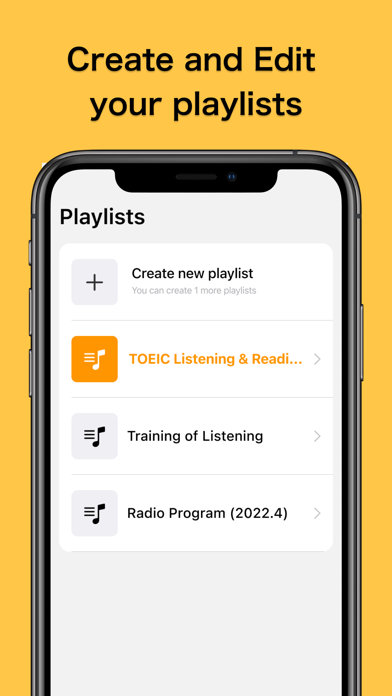
1. Create a playlist
First, tap the Playlist button in the upper right to go to the Playlist screen and create a list of items you want to play.
Use the "Add" button in your playlist to select songs from your music library or audio and video files from Files. You can add multiple items at once.
In "Edit" mode, you can also change the order of the items.
2. Start playback
Once you have created your playlist, go back to the previous screen.
The audio in the selected item is analyzed, and its waveform is displayed on the screen.
Tap the play button to start playback. For video files, the video also appears on the playback screen.
3. Playback position can be changed by tapping on it.
If you tap the waveform during playback, the playback position will move from the tapped position.
4. Add Marker
Tap (double-tap) the audio waveform twice in succession to display the menu and add a marker.
You can also add a marker at the current playback position by tapping the "Add Marker" button to the right of the playback button.
To delete a marker, tap the marker again, and select "Delete" from the menu that appears.
You can also move a marker by dragging it.
5. Repeat/Skip playback between markers
When the "Marker repeat" button is selected, playback will be repeated between the added markers. You can also move the playback position to the previous marker or the next marker.
6. Change the playback speed
Use the tortoise and hare buttons at the bottom right to change the playback speed.
You can reset the speed to 1x by clicking the middle button.
7. Change the length of audio displayed in one line
Tap the "XX seconds" button in the upper left corner to change the length of audio displayed per line from 5 seconds to 60 seconds.
----------------
If you have any comments or requests regarding the development of the app, please contact us through this developer website (twitter).