
iPhone Screenshots


Description
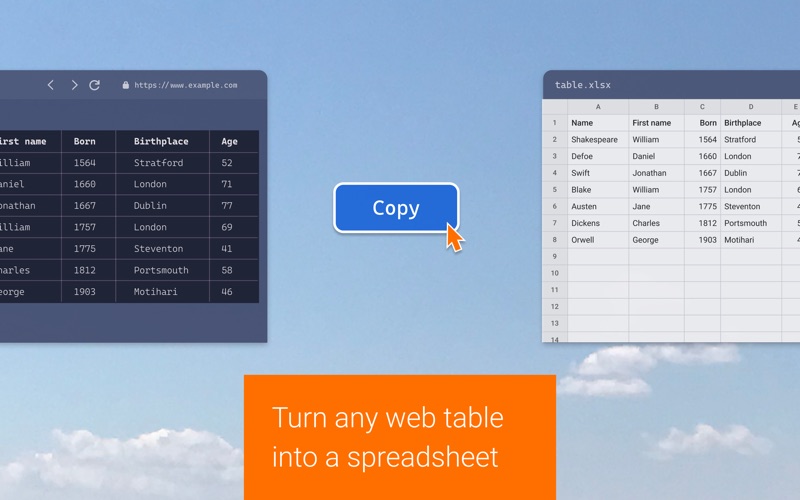
Copytables copies HTML tables from web pages and saves them as Excel files — the whole table, or just the part you select.
EXCEL
The selection can be downloaded as an .xlsx workbook. Numeric cells arrive as numbers and not as text, so they can be used in formulas right away, and a second variant of the format writes the same workbook with the colors, fonts and borders of the page.
SELECTING
Hold ⌘ and drag over the cells you want; ⌥ takes whole columns, ⌘⌥ whole rows, and ⇧ adds to what is already selected. Which key does what is up to you. Capture mode goes one step further and selects with a plain click, without any key at all. And a table can be reached without the mouse as well: there are commands that scroll the page from one table to the next and select it.
COPYING
The selection goes to the clipboard as styled text that keeps the colors and the fonts of the page, or as a plain table that carries none of them. It can just as well be copied for a spreadsheet, as an aligned Markdown table, or as the HTML behind the table. Any of that can go to a file instead of the clipboard, from the page context menu, from the toolbar menu or with a shortcut.
INFOBOX
Tells you how many numbers are in the selection and what they add up to, along with their average and the range they cover.
NUMBERS
Copytables reads the numbers in the cells for the infobox and for the spreadsheet files. If a page uses a number format that does not match your system settings, the decimal point and the thousands separator can be set by hand.
KEYBOARD SHORTCUTS
Copying, downloading, the capture modes and the walk from table to table can each be put on a shortcut. None are assigned out of the box.
The toolbar menu holds the rest — the default formats, the mouse behaviour and the infobox.
GOOD TO KNOW
Copytables supports only actual HTML tables. Pages that only look tabular, and online spreadsheets, are not supported.
Copytables works entirely on your computer and never sends anything anywhere.