
Vx Remote Legacy
Control devices with encoder and track pad
Trent Barclay
iPhone Screenshots


Description
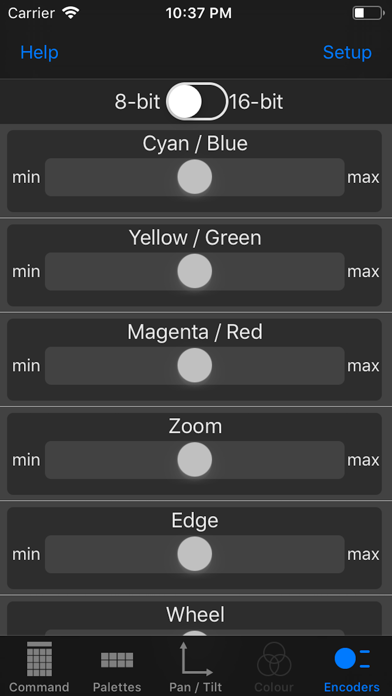
Control devices via SSH and OSC protocols. Manage presets and palettes. Adjust pan and tilt with a track pad. Control encoders and access command line history. Save multiple connection settings for quick access.
Features include:
- standalone command line
- presets & palettes
- pan & tilt track pad
- encoder control
- command line history
- store multiple connection settings
Setup Instructions
This app uses both SSH and OSC and these need to be configured on the console.
- I recommend connecting your WiFi access point to the Aux network port on your console.
- You need to enable Remote Login. Navigate your way to System Preferences -> Sharing and enable Remote Login.
- In the Vx76 application, navigate to Settings -> DMX In/OSC and enable DMX In/OSC Enable.
You will need to add the consoles details to the Vx Remote App
If you have yet to add a console, the app will ask for these details automatically.
- Console Name: Use this to label the connection
- Host / IP: either [computer name].local or IP address
- Port: This is the SSH port, the default is 22
- Username & Password: of the User account on the console