
iPhone Screenshots
Description
Convert images to JPEG or PNG formats. Adjust JPEG quality and preserve Exif metadata. Set a default output directory. Drag and drop files or use the Open menu to select images. Right-click in Finder to open with the .
Convert HEIC images to JPEG or PNG.
■ Features
- Very fast conversion.
- Convert to either JPEG or PNG.
- Choose JPEG quality.
- Preserves image metadata (Exif).
- Set default output directory.
■ How to convert
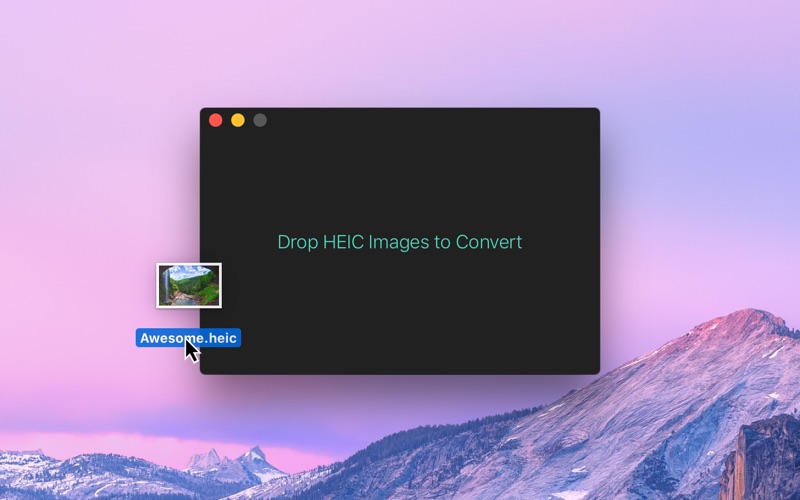
- Drag and drop your HEIC images onto the window or the Dock icon.
- Click the “Open” button in the window or in the “File” menu and then choose your HEIC images.
- Right-click your HEIC images in Finder and select this app in the “Open With” menu.
■ FAQ
‣ Can I drag and drop images from the Photos app?
No. The Photos app doesn't provide the original HEIC images when dragging. Instead, just drag and drop images from the Photos app to Finder to convert.
■ Support
Click the feedback button in the “Help” menu in the app.